October 20, 2026
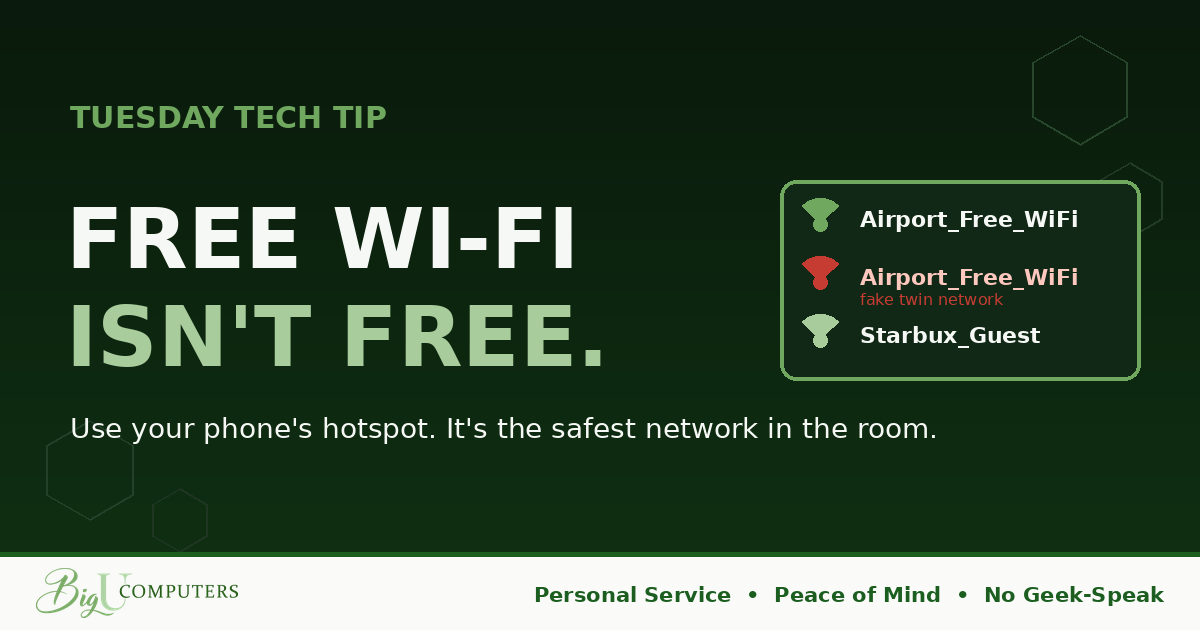
You've got forty minutes before boarding. You open your laptop at the gate, and there it is: "Airport_Free_WiFi." One tap. You clear your inbox, approve a couple of things, log in to the client portal to grab a file. Productive layover.
What you didn't notice is the person three seats down with a small device in their bag, running a network with the exact same name as the airport's. Yours connected to theirs. Everything you just did went through their hands first.
The Fake Twin
This is the trick that makes public Wi-Fi dangerous, and it requires almost no skill. A cheap gadget or even a laptop can broadcast a network named "Airport_Free_WiFi," "Hotel_Guest," or "Starbucks WiFi." Your device sees a familiar name and connects. It can't tell the real one from the copy, and neither can you.
Once you're on the impostor's network, they sit in the middle of everything. They can see which sites you visit. They can serve you a fake login page that looks exactly like your email's. They can capture passwords typed into anything that isn't properly protected. And they can do it to everyone in the room at once.
Even the Real Network Is a Shared Room
Set the fake-twin trick aside for a moment. The genuine hotel or airport network is still a space you're sharing with hundreds of strangers, on equipment you know nothing about, run by people whose job is hospitality, not security. Modern websites encrypt a lot, which helps. But "a lot" isn't "everything," and one unprotected app or one fake login page is all it takes.
The Habit: Bring Your Own Network
Your phone has a personal hotspot built in. It turns your phone into a small, private Wi-Fi network that only your devices join, running over your cellular connection. No strangers, no fake twins, no hotel router of unknown age. It's the safest network in any building you walk into, and most phone plans already include it.
- iPhone: Settings, Personal Hotspot, turn on "Allow Others to Join." Your laptop will see a network with your phone's name.
- Android: Settings, Network & Internet (or Connections), Hotspot & Tethering, turn on Wi-Fi Hotspot.
- Set a strong password on it once, and you never have to think about it again.
Hotspots use your cellular data, so it's not for streaming movies. For email, documents, and a normal workday, it's more than enough.
If You Absolutely Must Use Public Wi-Fi
- Turn on your company VPN first, before you open anything work-related. A VPN wraps everything you do in a private tunnel, so even a fake twin sees only scrambled noise. If your company provides one, this is exactly what it's for.
- Skip the high-stakes stuff. No banking, no payroll, no password changes. Save those for the hotspot or for when you're back.
- Never install anything a Wi-Fi login page tells you to install. "Download our connection helper" or "update Flash to continue" is not a network requirement. It's a trap.
- Confirm the network name with a human. Ask the front desk or the barista exactly what their network is called. If you see two with the same name, that's your cue to use the hotspot.
- Forget the network when you leave, so your device doesn't automatically reconnect to a lookalike the next time it sees the name.
Owners: The One-Click VPN
If anyone on your team works from the road, they need a VPN they can turn on with one click and that ideally turns itself on whenever they leave the office network. That's not an enterprise luxury anymore. It's a standard part of a properly managed setup, and it makes every coffee shop as safe as your conference room. It's also one of the first things a cyber insurance questionnaire asks about.
Want to see what the simple version looks like for a team your size? Book 20 minutes with me here. No Geek-Speak, just Peace of Mind wherever your people happen to be working.
Big U Computers, LLC. Personal Service, Peace of Mind, No Geek-Speak, and We Won't Hold You Hostage. That's the promise.